
Steps to Create a New Special
-
Log Into the Rank App
- Visit app.rankreallyhigh.com and log in to your account.
-
Access the Specials Section
- From the Ecommerce drop-down menu, select "Specials."
-
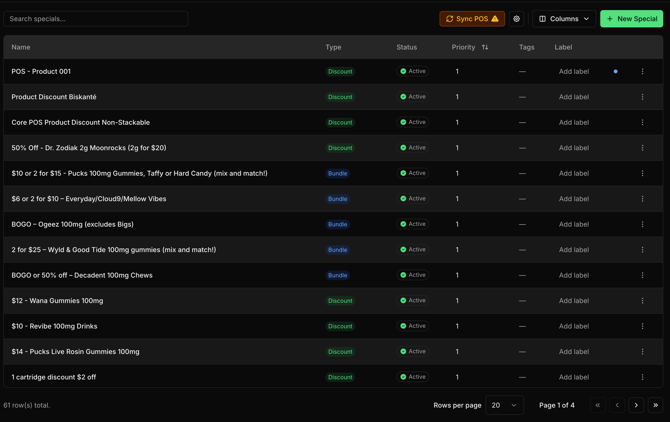
Create a New Special
- Click the green “New Special” button located in the top right corner.
Basic Information
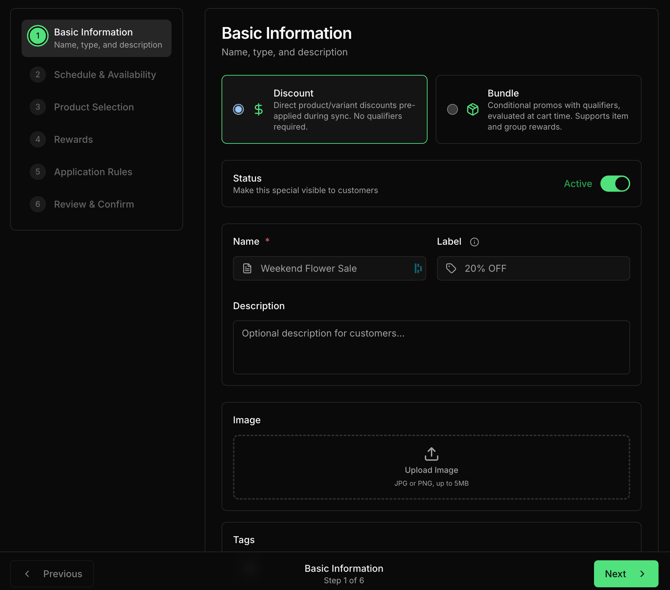
Minimal requirements - Fill in the following fields:
-
Discount: Choose between a standard discount or a bundle.
-
Name: Provide a name for the special.
-
Label: Add a short label for display on product cards (e.g., "20% OFF", "BOGO").
-
Description: Include a description of the discount that will appear on the special card and page.
-
Image: Upload an image for the special card and page.
-
Tags: Enter keywords that users can search for.
-
Terms & Conditions: Outline any legal terms or conditions related to the special.
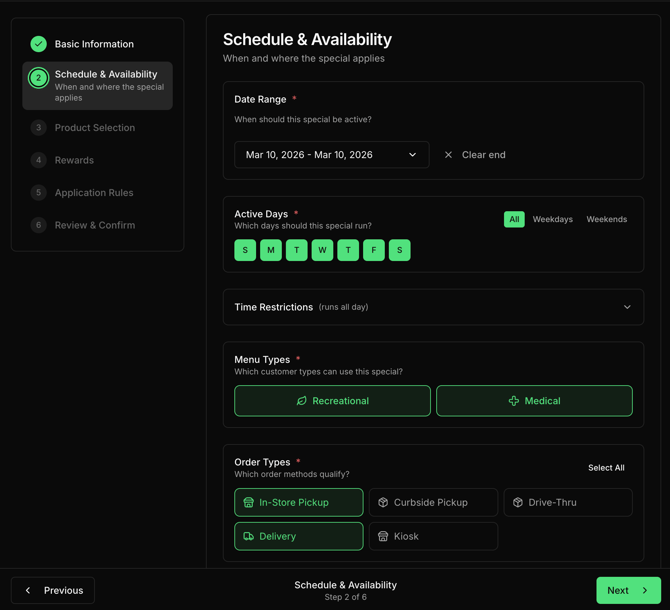
Schedule & Availability
-
Date Range: Set a start and end date for the special. The end date is optional for ongoing specials.
-
Active Days: Define which days the special will be active. It defaults to all days of the week, including weekends.
-
Time Restrictions: Specify start and end times for the special. Leaving this blank will make it available all day.
-
Menu Types: Restrict the special to recreational or medical menus, or include both.
-
Order Types: Limit the discount to specific order types (e.g., pick up only).
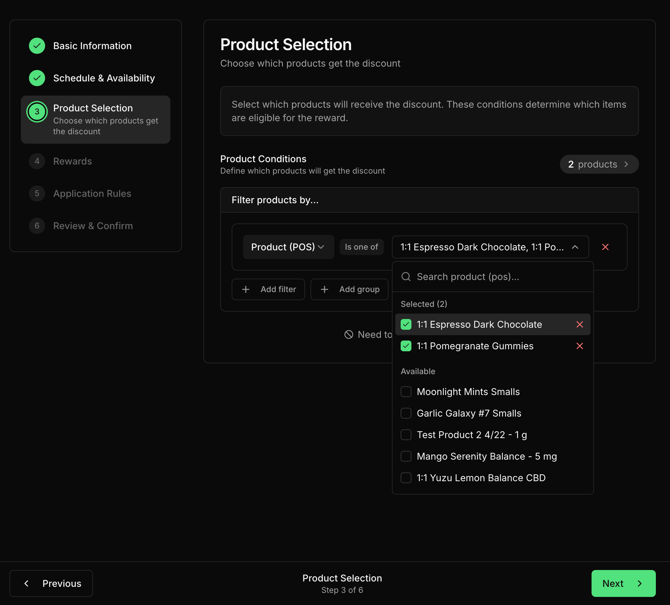
Product Selection
-
Click "Add" to create a filter.
-
Use the drop-down menu labeled “Product” to select from available filter options (e.g., Product, Brand, Category, Price, etc.).
-
Combine multiple filters using “And” or “Or” logic.
-
Use Add Group to group filters together (e.g., filtering by Category - Flower and Option - 3.5g).
-
To exclude items from the special, select the products and remove them from the exclusion list if needed.
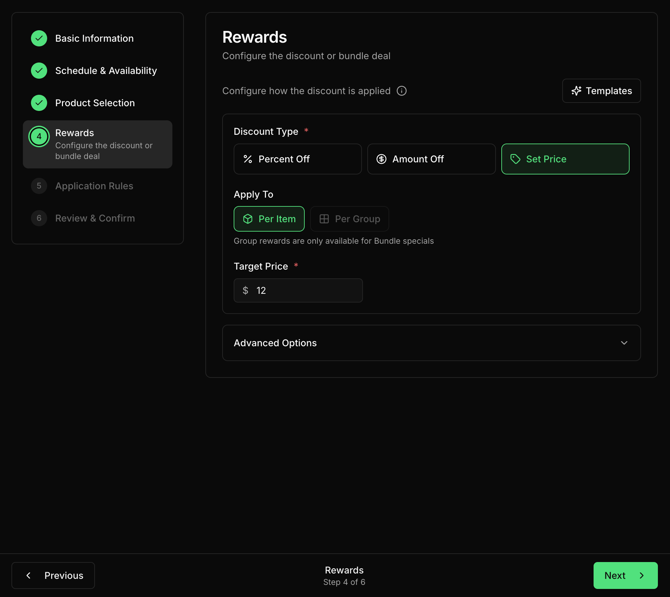
Rewards
-
Discount Type: Choose between percent off, dollar amount off, or a set price.
-
Apply To: Decide whether the discount applies to each item or per group.
-
Discount Value: Specify the value of the discount, either as a percentage or a dollar amount.
Advanced Options
-
Apply to Count: Determine the quantity of items to which the discount will apply.
-
Selection Policy: Choose whether the discount applies to the lowest priced item, the highest priced item, or any item.
-
Rounding: Choose rounding preferences (e.g., Bankers rounding, Half up).
-
Tax Behavior: Opt for the discount to be calculated before or after tax.
-
Discount Caps: Set limits on discounts per item or per cart.
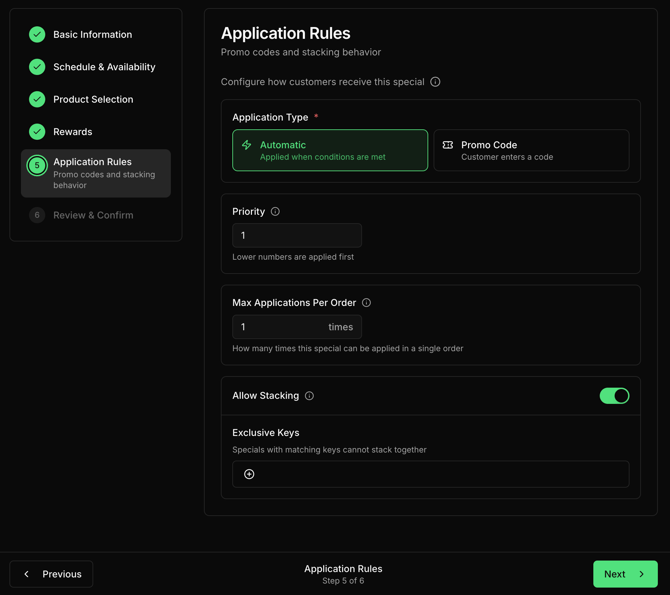
Application Rules
-
Application Type: Choose between Automatic or Promo Code.
-
Priority: Assign a priority level for the special when multiple specials are linked to a product. The lowest priority (1) applies first.
-
Max Applications per Order: Define how many times this special can be applied in a single order.
-
Allow Stacking: Enable or disable stacking with other discounts.
-
Exclusive Keys: If stacking is enabled, enter the key for compatible discounts.
Review & Confirm
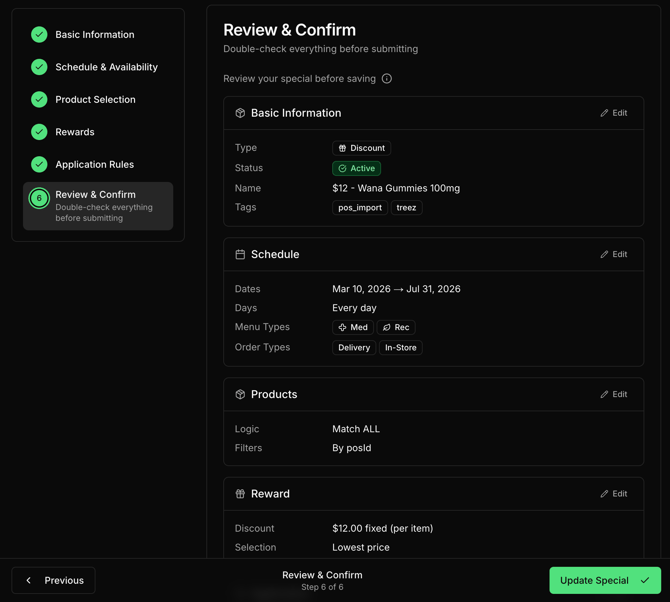
Once all settings are configured, review the summary page. If everything looks accurate, click “Create Special” to finalize your new special.
By following these steps, you can successfully create and manage specials in Rank App. If you have any questions or need further assistance, please refer to our support team.